Star Map or Sky App: Finding Your Bearings Overhead
Choose a star map or sky app by the kind of orientation you need, so you can match the tool to your observing spot and find your way overhead.
The most common mistake when choosing a star map or sky app is expecting both to point you toward the same kind of orientation. A paper chart gives a fixed view you learn to turn in your hands; a phone app can match its display to the direction you face. Choose the wrong starting point and the sky may feel harder to read, even when the stars are plainly visible.
Each tool can help you connect patterns overhead with names and positions. The useful question is not which one is better, but how you want to get your bearings: by learning a stable map, or by asking a live display to follow your view.
1. A paper star map builds orientation through rotation
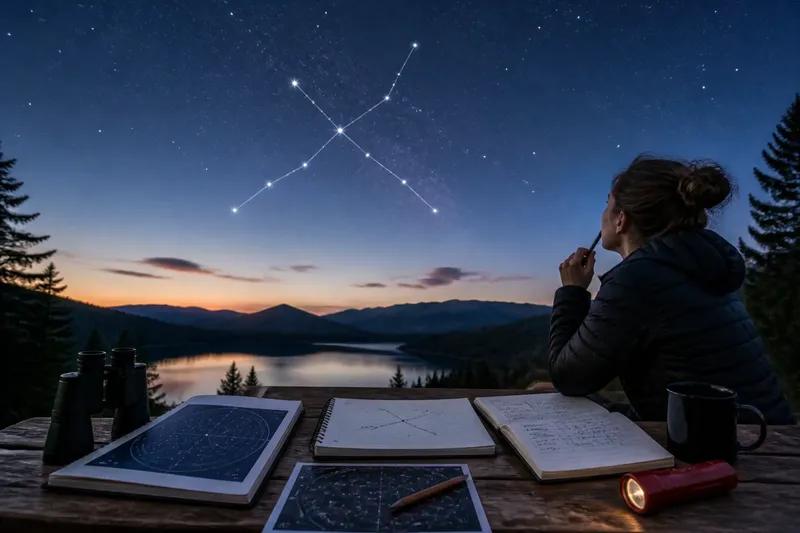
A paper map lays out the sky as a chart rather than as a window. Depending on its design, it may show a broad region, an entire hemisphere, or a date-adjustable circle called a planisphere. A planisphere has a rotating mask and a sky disk; setting the date and time reveals which stars should be above the horizon.
The map does not turn itself toward north, south, east, or west. You rotate it so the direction marked on the chart agrees with the direction you face. If you are looking east, for instance, the eastern edge belongs toward your body, while the chart’s sky positions are read in relation to that orientation. The paper stays still; your hands do the aligning.
This can make a printed chart a good tool for building a mental sense of how star patterns relate to one another. You can scan from a familiar bright star toward nearby patterns without a screen changing as you move. The tradeoff is that matching a flat chart to the curved sky takes practice, especially near the edges of a wide map.
2. A sky app offers orientation that follows your view
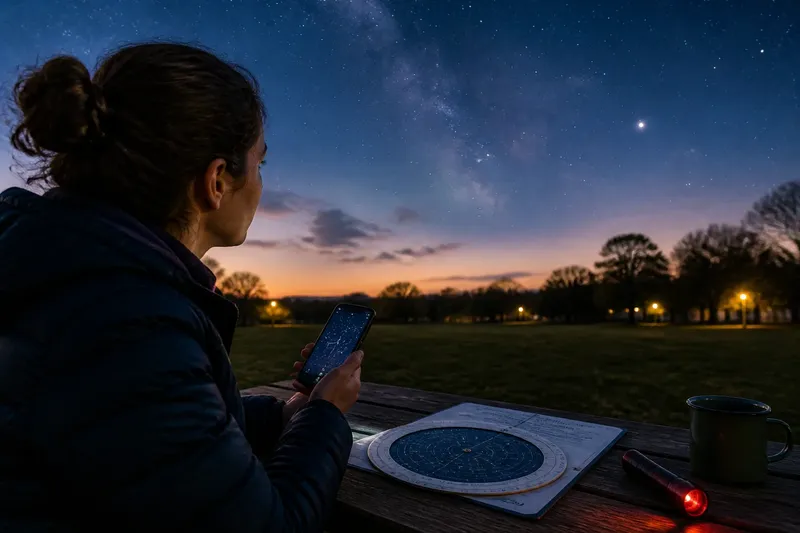
A sky app uses a phone’s location, time, compass, and motion sensors to place a sky chart on the screen. In augmented-reality mode, the chart may appear over a live camera view. In a standard map mode, you can still turn the display or select a direction to inspect what lies there.
That responsive orientation is useful when you are unsure which way you are facing. Hold the phone toward a patch of sky, and the display can show labeled stars, planets, or constellations in that direction. The screen is a direct reference rather than a chart you must rotate by hand.
But a phone’s compass can be affected by its surroundings, and the display may point inaccurately until it is calibrated or moved away from nearby metal. A bright screen also competes with faint stars. Check the app’s compass behavior against a known direction or a prominent star pattern, and lower the screen brightness before relying on it in a dark location.
3. Choose the tool that fits the question you are asking
Different observing questions favor different forms of orientation. If you want to identify a bright object directly in front of you, an app’s live direction can reduce the guesswork. If you want to understand how a group of stars sits within a larger region, a paper chart offers a broader, steadier view.
- Use a paper map when you want a wide-field reference that does not depend on a battery or sensor.
- Use a sky app when you need help matching a named object to the direction you are facing.
- Try both when a live label helps you identify a pattern and a printed chart helps you see what surrounds it.
Imagine you are standing in a park and can see one conspicuously bright star, but you do not know its name. You point a dimmed phone toward it, use the app’s label to identify it, then turn to a paper chart and trace the neighboring stars from that point. The expected observable result is that you can recognize the same pattern without holding the phone in place.
4. What should you check before heading outside?
Does a planisphere match the date and time?
A planisphere is useful only when its date and time windows are set correctly. It presents a general sky view, so it will not show every object or reflect local obstructions such as buildings and trees.
Can the app work without a connection?
Some apps store star charts on the device, while others need a connection for certain features or downloads. Check the app’s offline options before leaving an area with dependable service.
Will the phone’s display preserve your night vision?
Set the screen as dim as you can while still reading it, and use a night mode if available. A red screen setting may help, but its brightness still matters.
Can you verify the direction shown on screen?
Compare the app’s indication with a direction you can establish independently, such as a known landmark or a compass used away from metal objects. If the display seems to drift, use a recognizable sky pattern or switch to the paper chart while the phone settles.
5. A combined approach can ease the first transition
Using both tools need not mean juggling them all evening. Let the app answer a narrow question, such as which bright point is a planet, then put the phone away and use the printed map to follow the surrounding arrangement. This separates identification from learning the broader layout.
It is not worth chasing every label an app can display. A screen packed with object names can make an unfamiliar sky feel more complicated, not less. Turn off layers you are not using, or zoom to a small region around the object you are trying to recognize.
For a first outing, choose one area of sky and a short goal: identify a bright star, find a neighboring pattern, or compare the view with a chart. A star map or sky app is most useful when it gives you a clear bearing for that task. Over time, the valuable sign of progress is not memorizing a screen, but needing it less often to connect the printed map, the phone, and the sky above you.